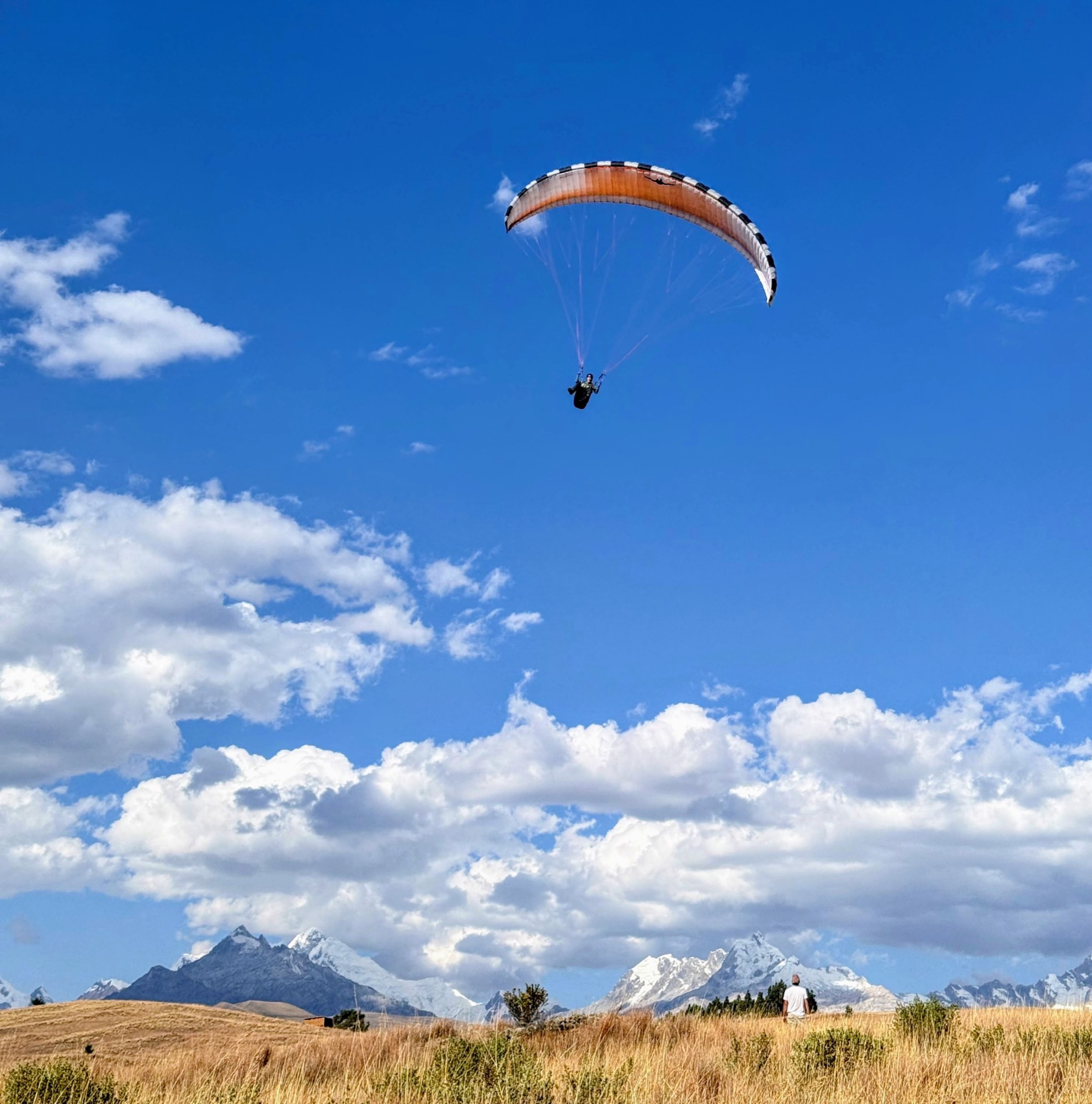
Your spot as screen saver
With Los Voladores on Android, your phone can show your spot’s screen while it charges: the time, the wind, the tide and who’s flying. At home or at the hostel, one glance tells you whether to head up to launch. Here’s how to turn it on. (The screens here are in Spanish; in English they read the same.)
- In the app
Update the app
The screen saver is in Los Voladores for Android since version 0.1.1, and the brightness setting in the latest one. If you don’t see what’s shown here, update the app on Google Play.
Android only: iPhone doesn’t let an app be the screen saver. Use Screen mode there (see below).
- In the app
Pick your spot
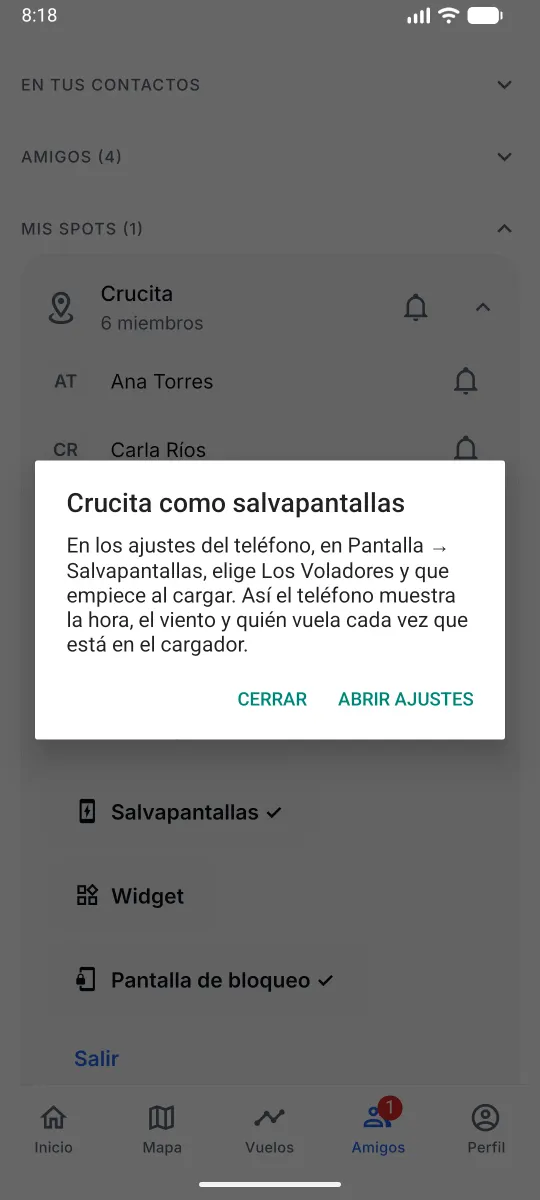
Open Friends, unfold My spots, tap the spot you want on the charger and tap Salvapantallas (Screen saver). The app tells you what’s left: tap Open settings.
Only spots you’ve joined are listed (how to join). The button shows a ✓ on the chosen spot; to switch, tap it on another one.
- In the phone’s settings
Choose Los Voladores
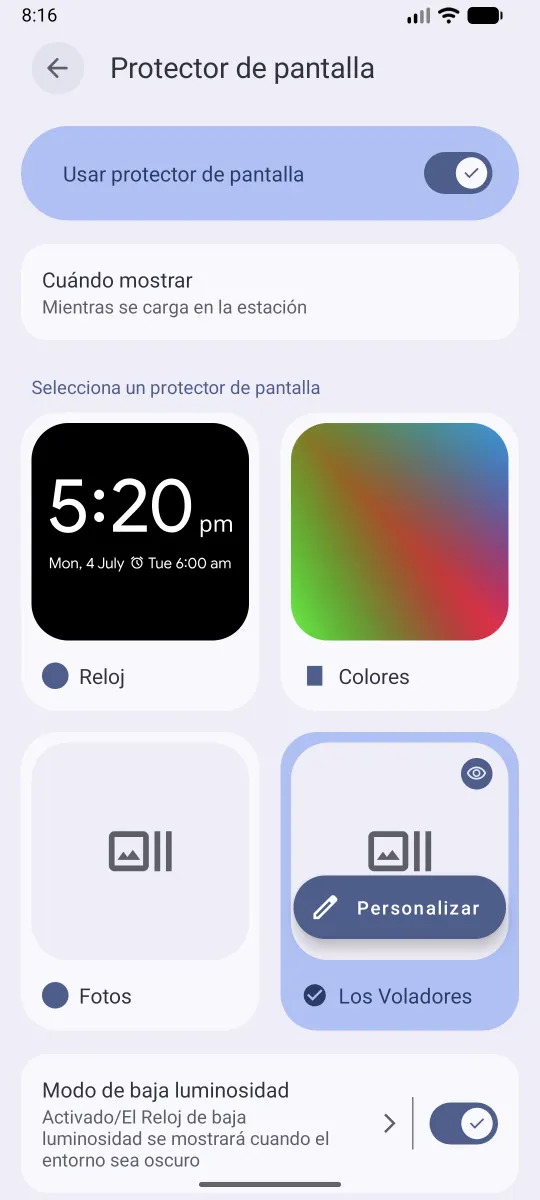
Under Screen saver, switch on Use screen saver and tap Los Voladores. The eye at its top right previews it right away.
If “Open settings” doesn’t land you there, go by hand: Settings → Display → Screen saver, or search Settings for “screen saver”.
- In the phone’s settings
Start it while charging
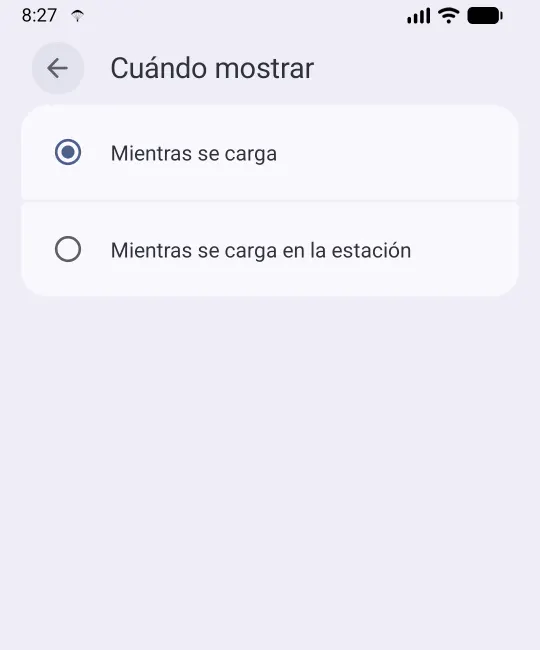
Tap When to start and choose While charging. Careful: Android 16 comes set to “While docked”, which only works on a charging dock, not with a cable.
On Samsung there’s no need: the screen saver always starts while charging.
- In the phone’s settings
Turn the brightness down (optional)
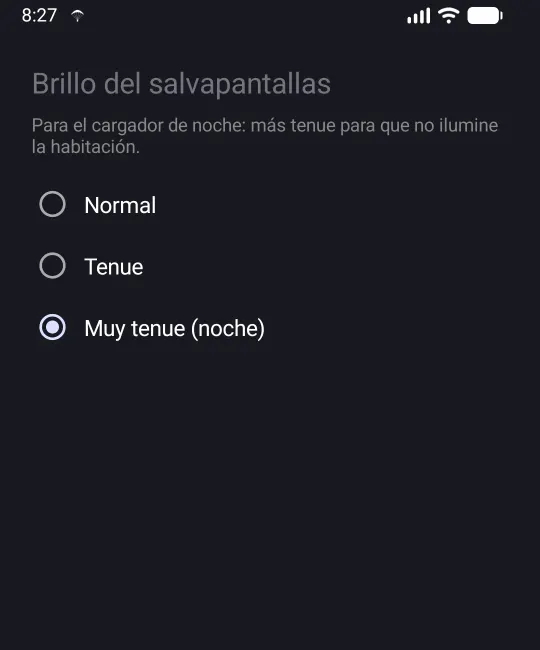
Charging the phone at night by the bed? With Los Voladores chosen, tap Customise (on other phones, the gear ⚙ next to Los Voladores) and choose Tenue (Dim) or Muy tenue (noche) (Very dim, night), so it doesn’t light up the room.
It only changes the screen saver’s brightness: the phone’s usual brightness stays as it is.
- In the phone’s settings
Put it on the charger
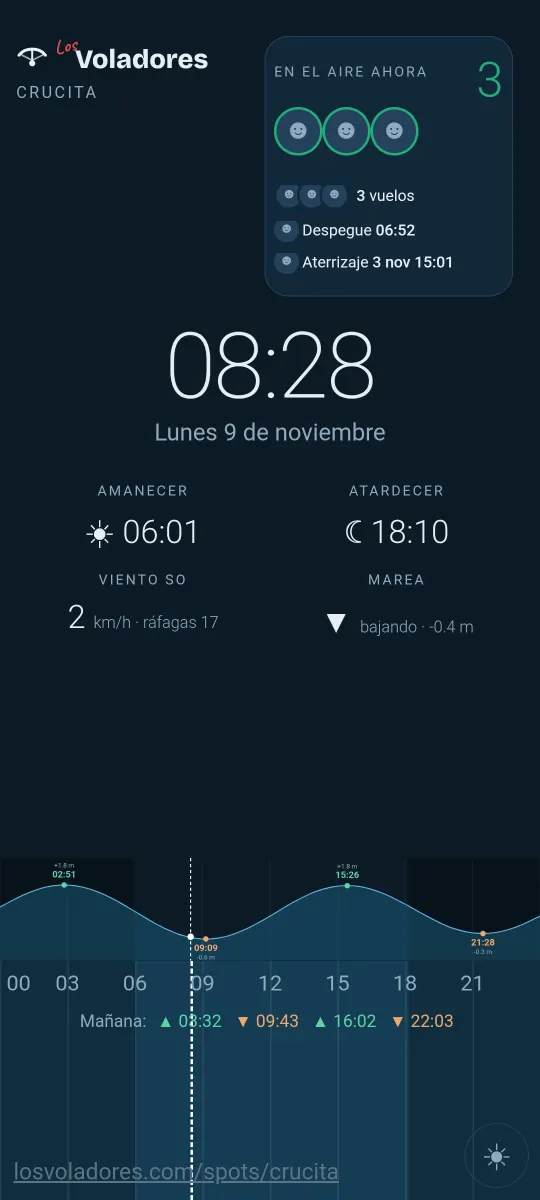
Plug the phone in and leave it: when the screen would turn off by itself, the spot comes up with the time, who’s in the air, the wind and the tide, and keeps itself up to date.
Turning the screen off with the power button works as always: the screen saver only shows when the screen times out. Touch the screen to close it; the phone stays locked.
Questions
Very dim doesn’t look much darker? This is Muy tenue (noche) (Very dim); it also turns the screen’s light down to the minimum, which a screenshot can’t show.
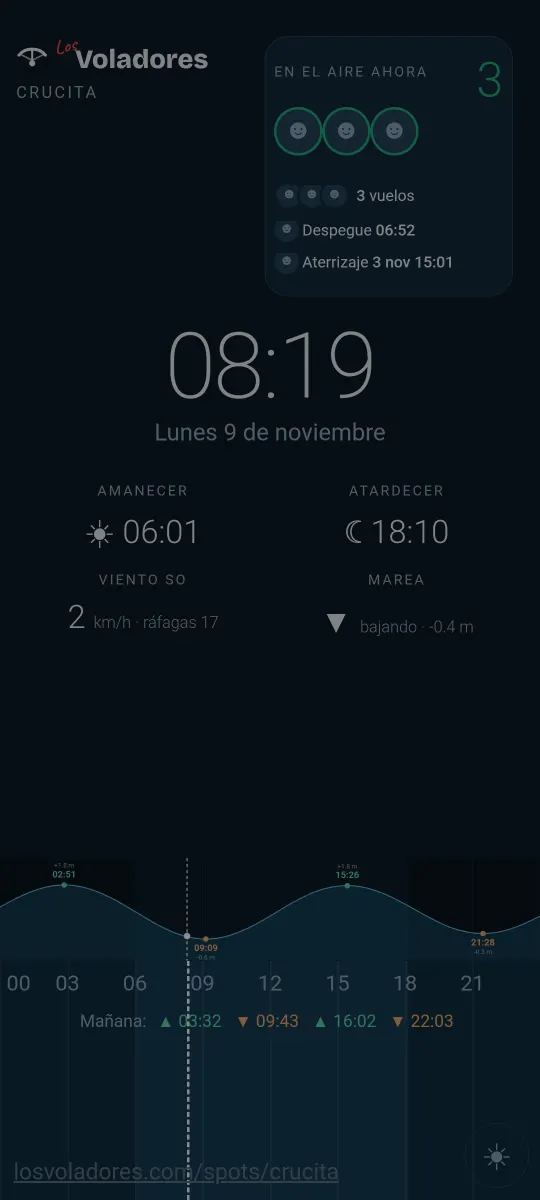
A clock shows at night instead of my spot? Android 16 has Low light mode, which swaps the screen saver for a clock when the room is dark. Turn it off under Screen saver if you’d rather see the spot (on Very dim).
What about iPhone? iPhone doesn’t let an app be the screen saver. Use Screen mode: in Friends → My spots, tap the spot, then Screen mode. The screen stays on while it’s open; leave the phone on the charger. It works on Android too.
And on the lock screen, off the charger? Android doesn’t let apps put anything on the lock screen, but the spot can stay there as a notification: see your spot on the lock screen.
Does it drain the battery? It only shows while charging, so no. It keeps the screen on, just like the built-in clock screen saver.
It says “Pick a spot in Los Voladores”? You haven’t picked a spot yet: do step 2.
Nothing shows, or it stays dark? It needs internet to load the spot. Without a connection it tries again every minute.
Don’t have the app yet?
Free for Android and iPhone.