
Your spot on the lock screen
With Los Voladores on Android, your spot can stay on the lock screen: who’s flying, the wind and the tide at a glance, without unlocking the phone. Here’s how to turn it on. (The app’s screens are in Spanish here; in English they read the same.)
- In the app
Update the app
The lock screen comes with the latest version of Los Voladores for Android. If you don’t see the button in step 2, update the app on Google Play.
Android only: iPhone doesn’t let an app stay on the lock screen. Use Screen mode there (see below).
- In the app
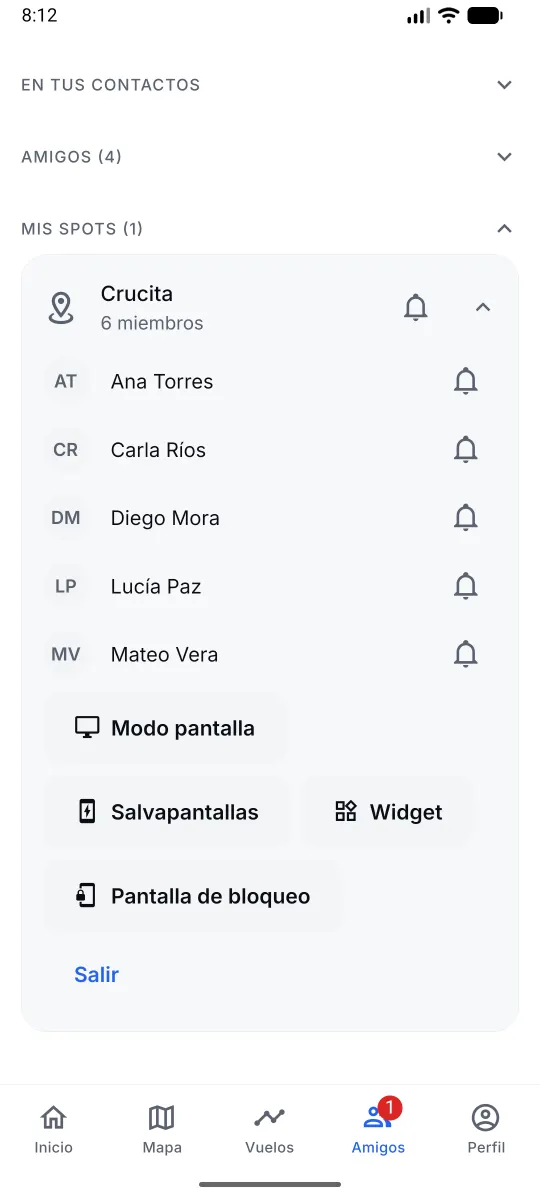
Tap “Pantalla de bloqueo” on your spot
Open Friends, unfold My spots and tap the spot you want to see. Tap Pantalla de bloqueo (Lock screen).
Only spots you’ve joined are listed (how to join). It’s one spot at a time: tapping it on another spot switches to that one.
- In the app
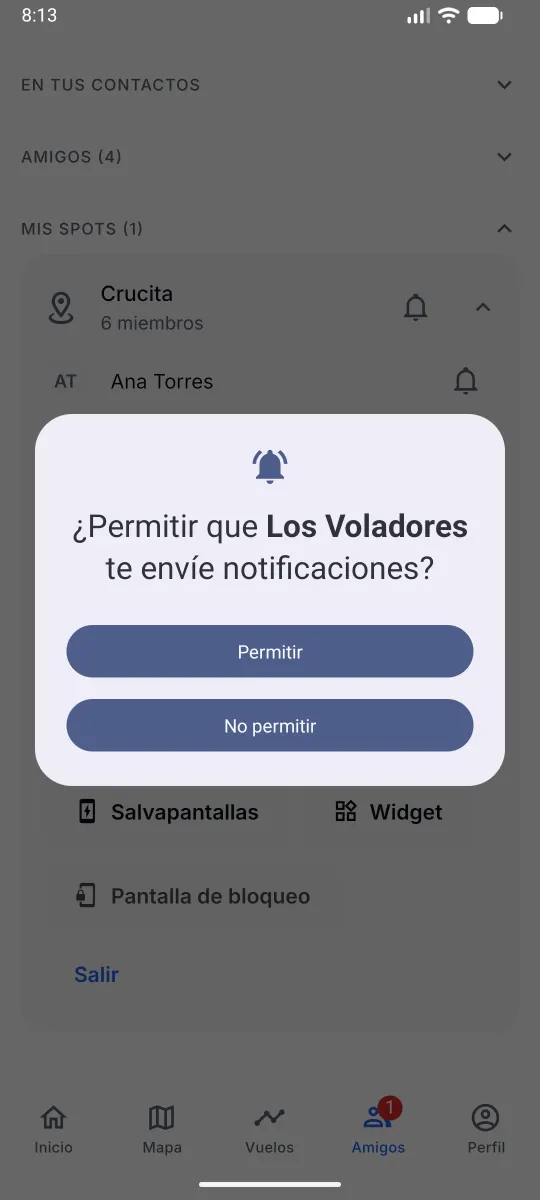
Allow notifications
The spot stays on the lock screen as a notification, so the app needs to be allowed to send them. If it asks, tap Allow. The button then shows a ✓.
No sound or buzz, neither when it appears nor each time it updates.
- On the phone
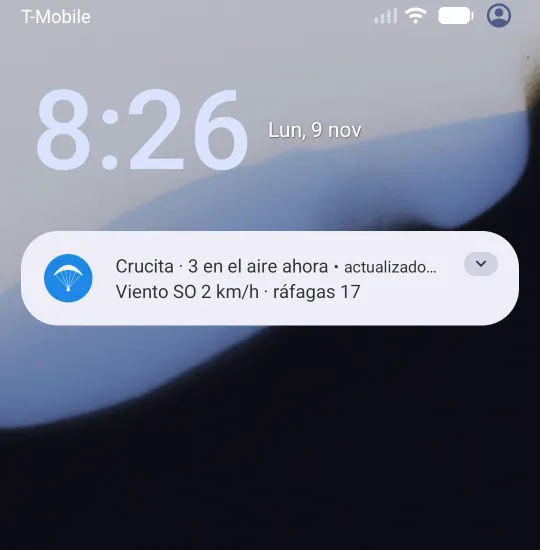
Lock the phone
Turn the screen on without unlocking and there’s your spot: how many are in the air, the wind and when it was updated.
It updates about every 15 minutes without waking the phone: if an update falls due while the screen is off, it catches up as soon as you turn it on.
- On the phone
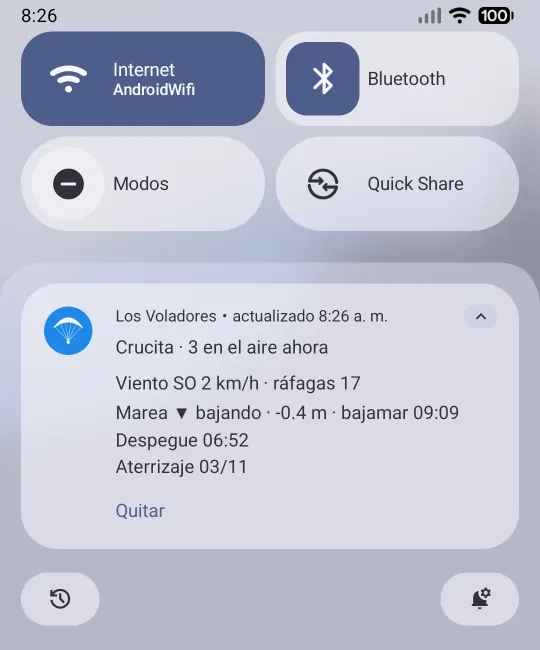
Unfold it for more
Tap the ⌄ arrow (or swipe down) to also see the tide and the last takeoff and landing. Tap it to open the full screen mode, once the phone is unlocked.
Quitar (Turn off) takes it off the lock screen.
Questions
How do I remove it? Tap Quitar (Turn off) on the notification, or tap Pantalla de bloqueo on the spot again (Friends → My spots). Just swiping it away brings it back at the next update.
It doesn’t show, or only the icon does? The phone hides notifications on the lock screen. In the phone’s settings, look for Notifications on lock screen (on Samsung, Lock screen → Notifications) and choose to show all of them, with their content.
Who can see it? Anyone who looks at your locked phone: it’s the same as the spot’s screen mode shows.
Does it drain the battery? Hardly: it asks the server for the data about once every 15 minutes, and doesn’t wake the phone to do it.
What about iPhone? iPhone doesn’t let an app stay on the lock screen. Use Screen mode: in Friends → My spots, tap the spot, then Screen mode; with the phone on the charger, the screen stays on.
And while it charges? Make your spot the screen saver: the spot’s whole screen, with a big clock, whenever the phone is on the charger.
Don’t have the app yet?
Free for Android and iPhone.